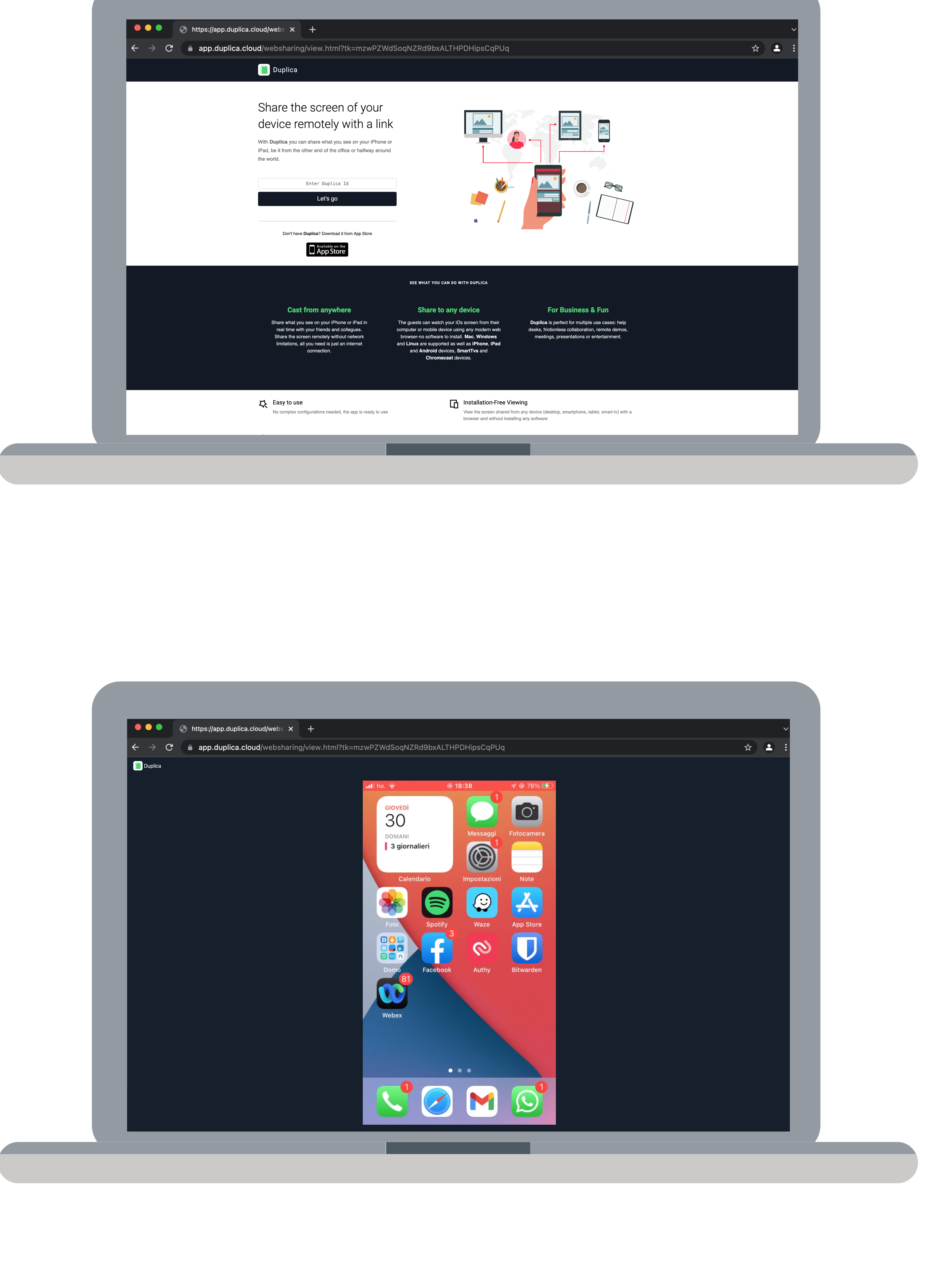
How to share your iPhone screen remotely
Step 1: Choose the screen sharing destination
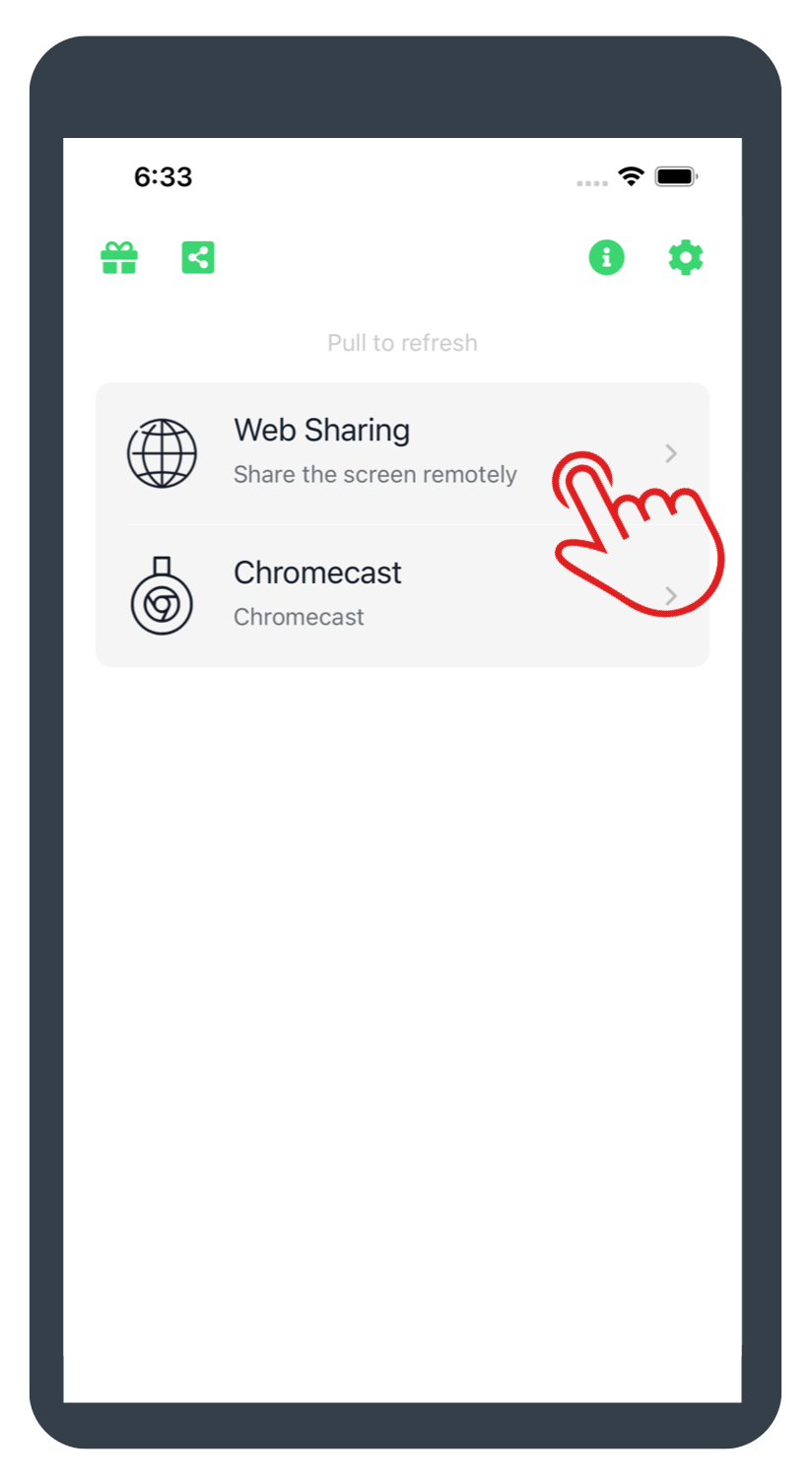
- Web Sharing
with this option it is possible to share iPhone’s screen to web browser remotely. It supports any browser (Chrome, Firefox, Edge, Safari) on any device (Mac, Windows, Linux, iOs, Android or Smart TV). - Chromecast
in this case it is possible to share the devices’ screen to a Chromecast connected to the same wifi network of the device.
To share the iPhone’s screen via web globally over internet we have to choose Web Sharing.
Step 2: Share the Duplica Link
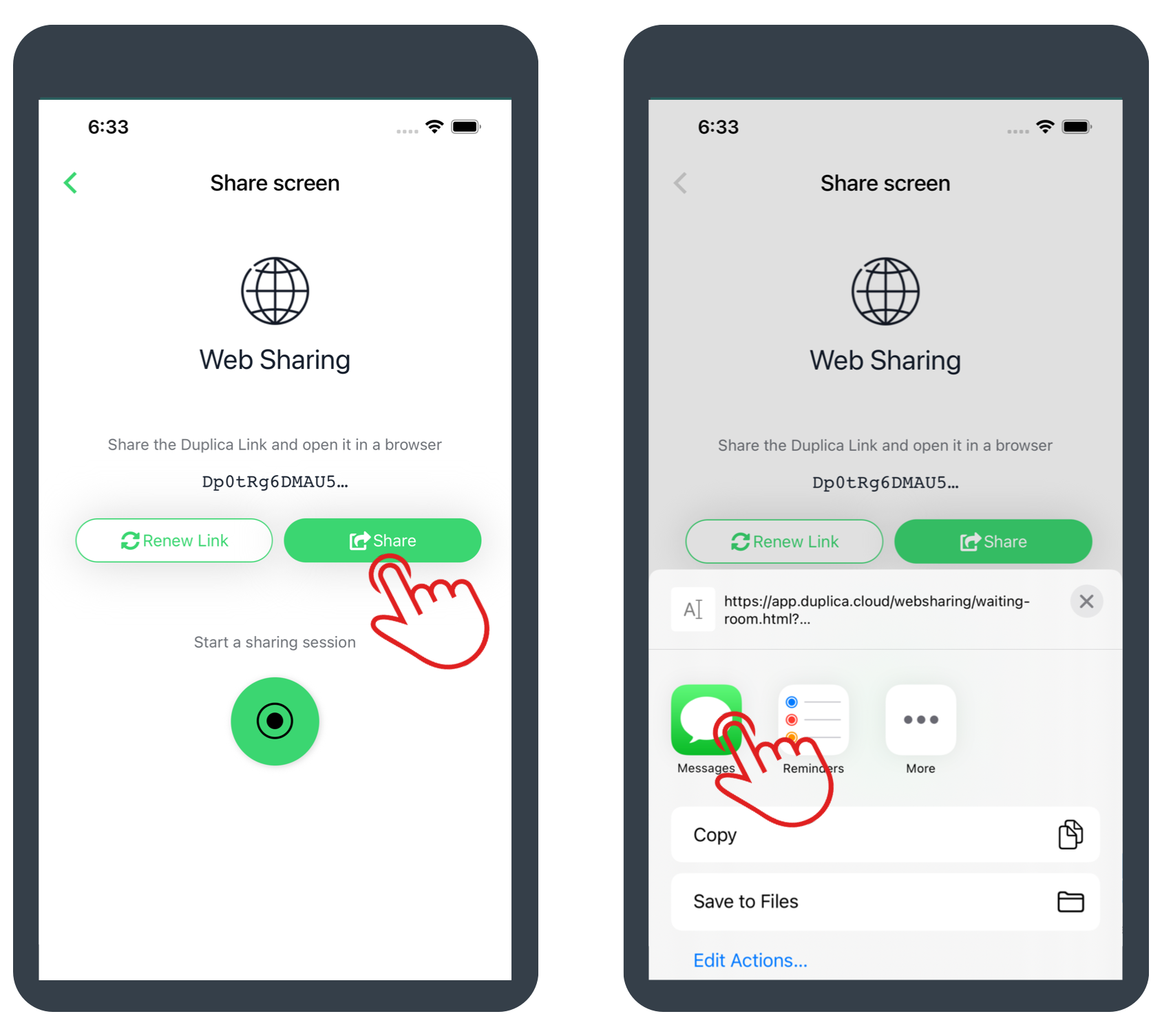
After that, a Duplica Link to connect to your screen sharing session is created.
We have to share the Duplica Link with our friend or colleague; we can do it via WhatsApp, sms, email, social etc.
Step 3: Start the sharing session
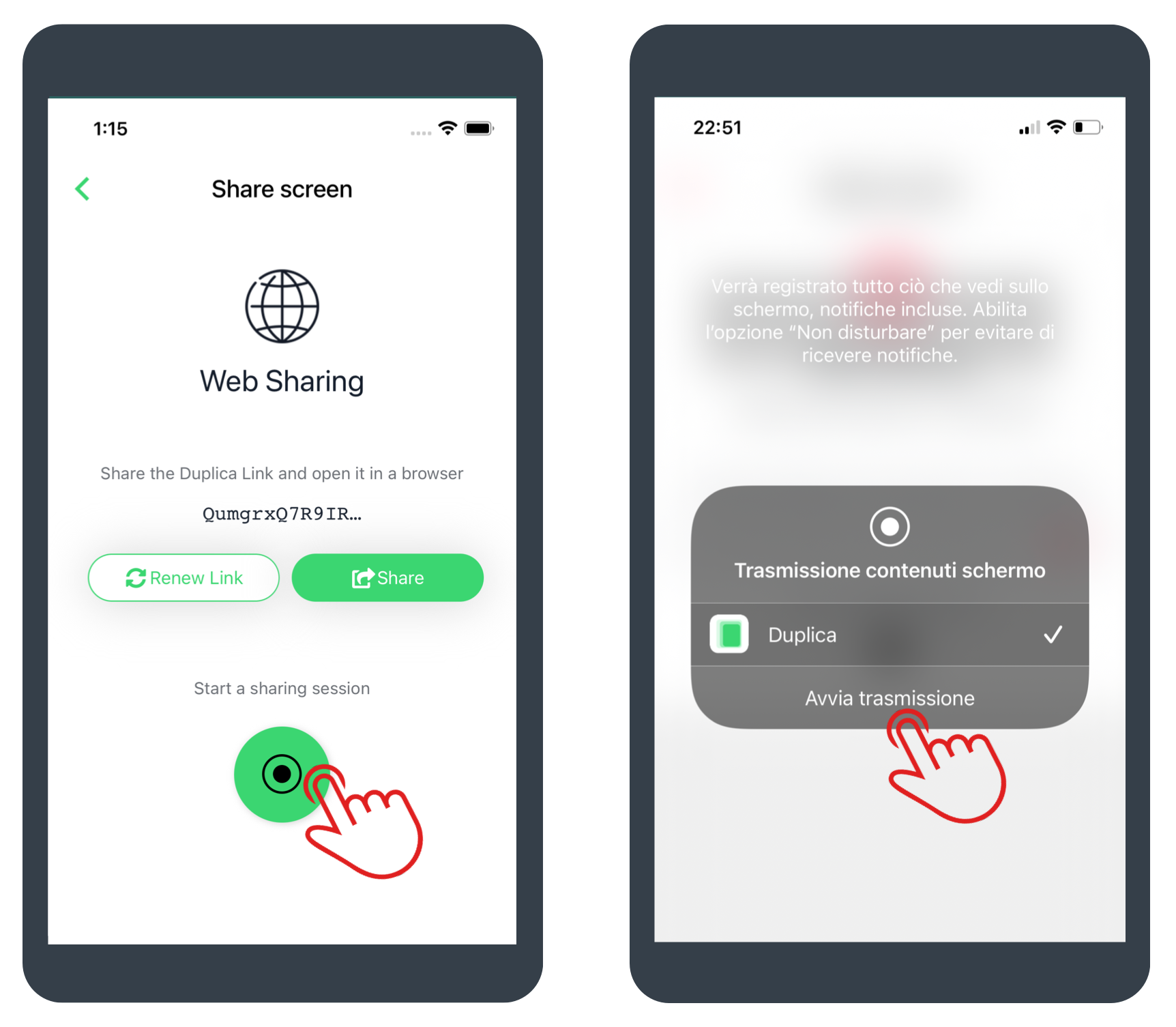
After that, we can begin ours session clicking first on the circular button and after on Start Broadcast.
Step 4: Watch the screen sharing session
To watch the session, your friend or colleague (that could be whether it’s from the other end of the office or from halfway across the world) has to click on the Duplica Link you have shared and wait until you start the broadcast.